
Getting Started with Beanstack
Updated: Aug 31
Have you ever wanted to participate in one of Sequoyah Regional Library System's reading quests but didn't know where to start? You're in the right place! In this blog, we'll introduce you to the Beanstack App, guide you through the steps of creating an account, and share some extra tips that even regular Beanstack users may not know.
Tip: Interested in learning more about Beanstack with a SRLS staff member? Schedule an Ask Us! session for one-on-one assistance in person, by phone or email, or through a virtual meeting.
What is Beanstack?
Beanstack is an app that lets you track what you're reading and earn badges along the way through reading quests provided by your library. At Sequoyah Regional Library System, we have multiple quests for community members to participate in, such as:
Summer Discovery Quest
Winter Literacy Quest
Seasonal Quests
Beanstack Basics
and more!
How do I create an account?
Download the App
To get started, you'll need to download the free Beanstack app. You can download the app by clicking the button below or by searching "Beanstack" in the app store of your preferred device.
Signing Up
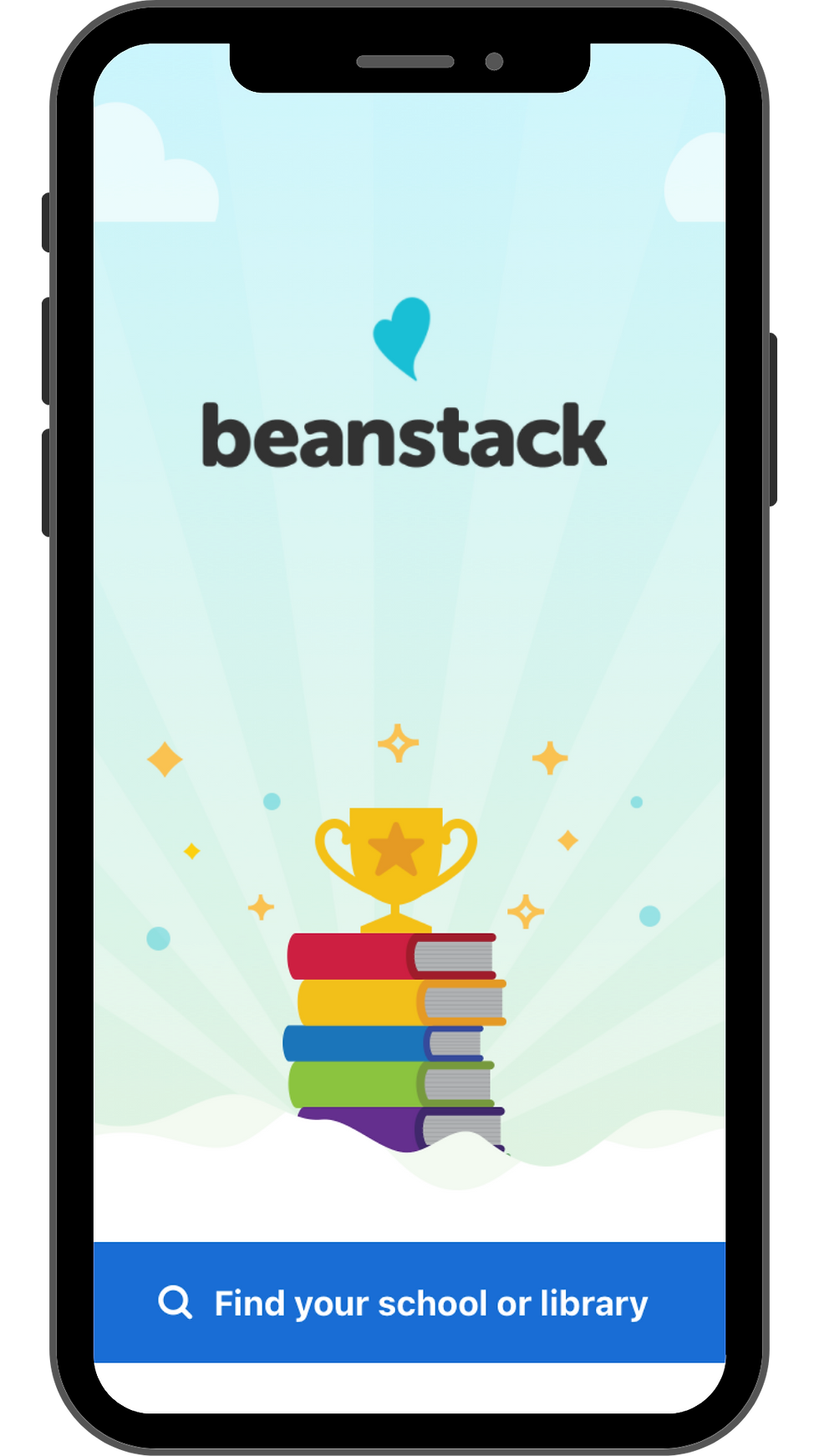 | Once downloaded, you'll need to create an account. To get started, first select "Find your school or library" |
 | In the search bar, type "Sequoyah Regional Library" and hit enter. Then, select "Sequoyah Regional Library (GA)" to set SRLS as your home library. |
 | Once selected, Beanstack will ask if you already have an account. If this is your first time with Beanstack, select "Sign Up" at the bottom. |
 | Next, you will be asked if you have previously used Beanstack to participate in a reading challenge. If you have not, select "no." If you're unsure, you can call any SRLS location for assistance. |
 | Now it's time to sign up! You'll need the following information to continue:
|
 | Lastly, you'll need to enter your first and last name. |
 | Congratulations! You now have an account in the Beanstack app. Next, you'll need to create a reader profile. You can create a profile for yourself or for another reader, such as a child. |
How do I create a reader profile?
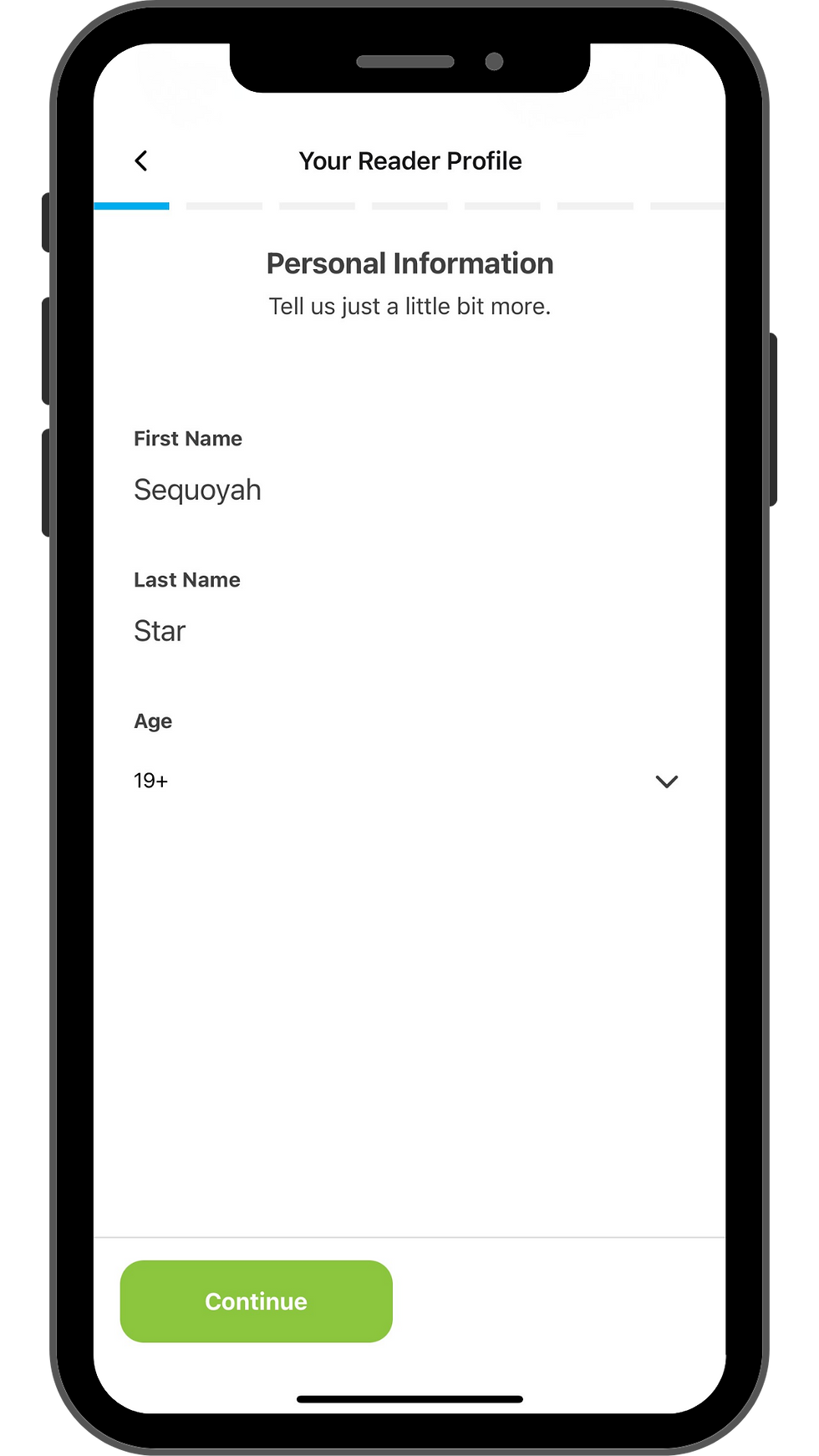 | Once your account is created, you'll need to add a reader profile to register for one of our many reading quests. To create a reader profile, you'll need to enter the reader's first name, last name, and age. |
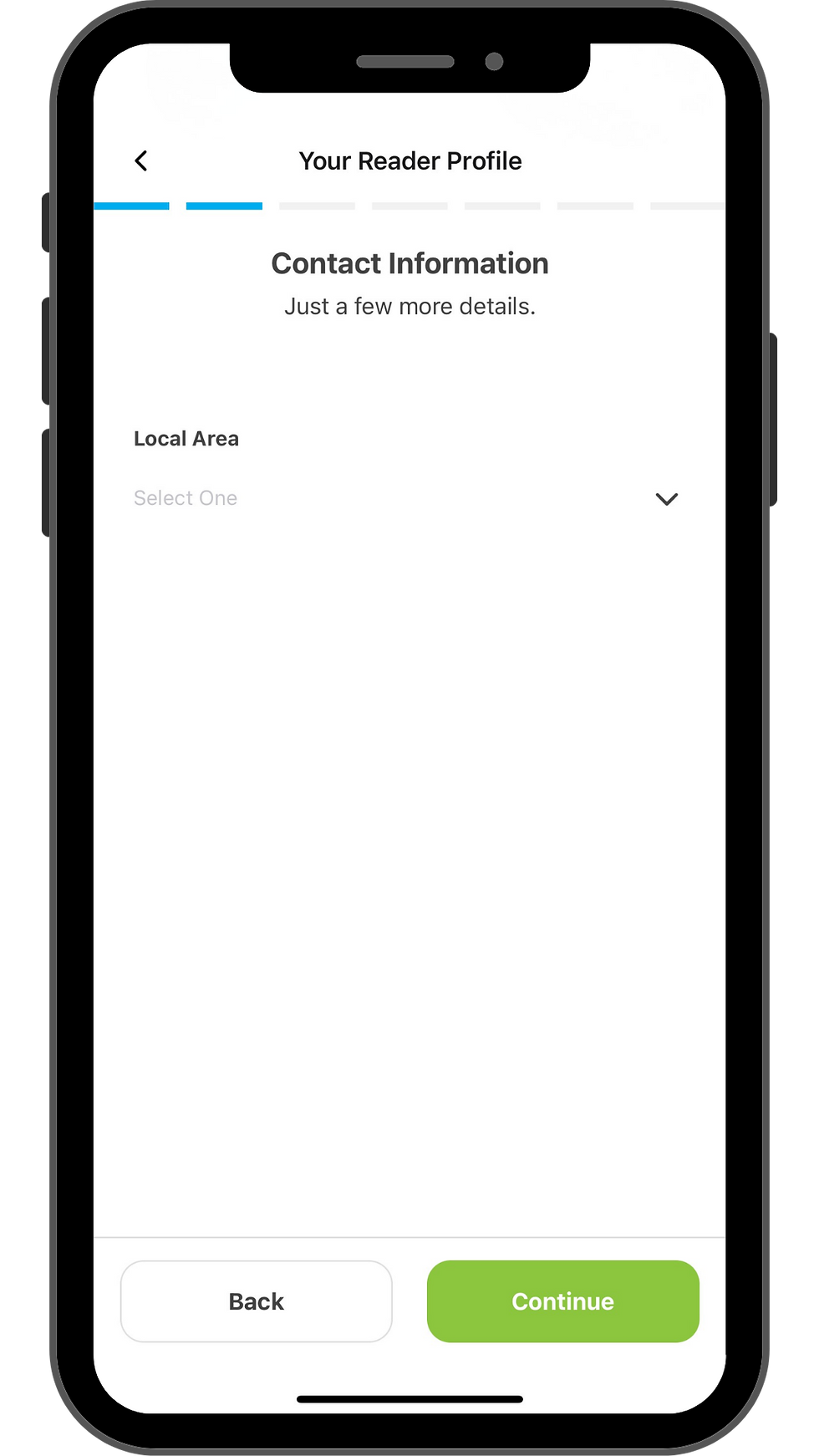 | Next, you'll need to choose your local area. Your local area is the county that you live in. For SRLS, the local areas you can choose from are:
|
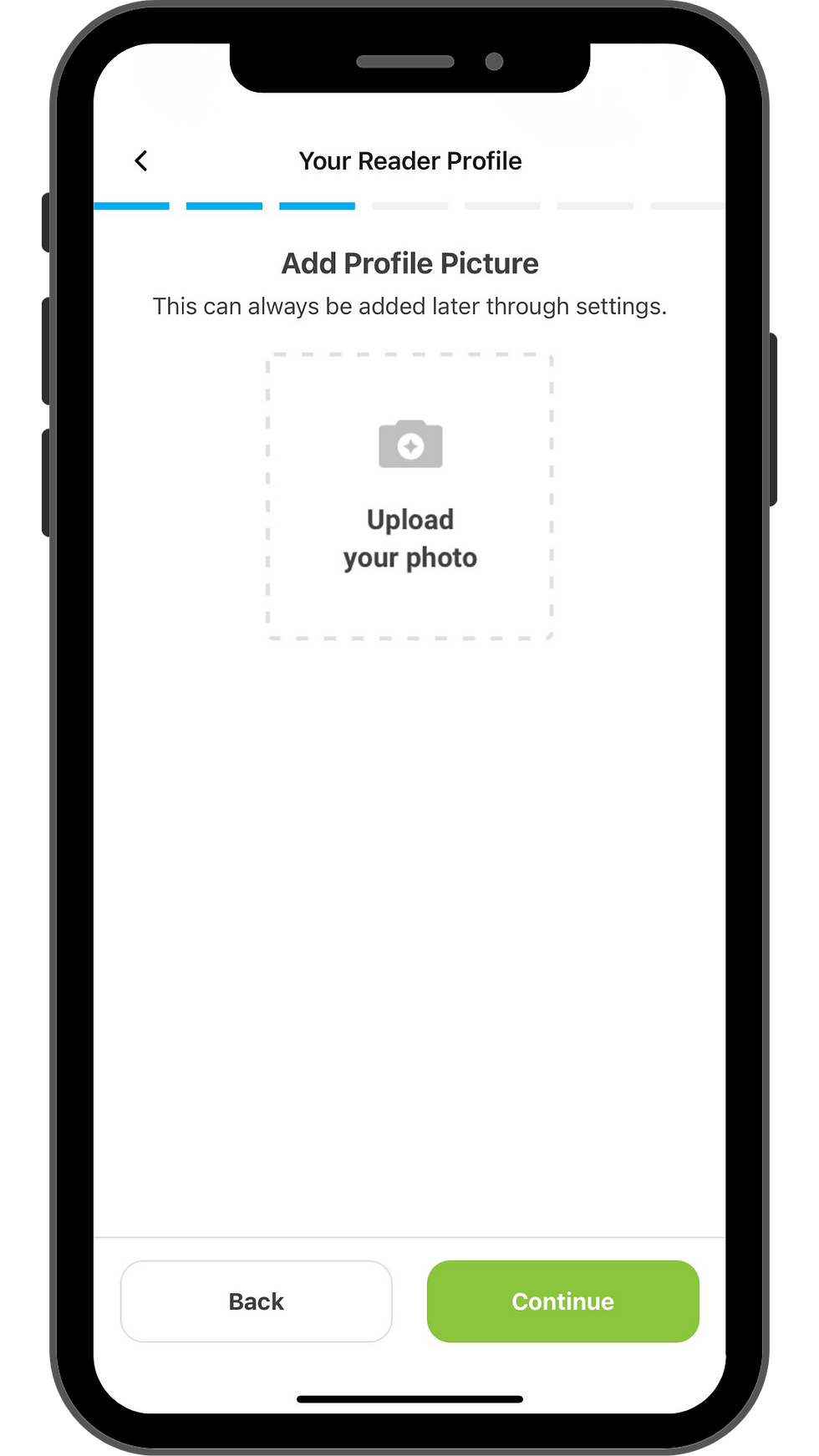 | Once you choose your local area, you have the option to upload a profile picture to your reader profile. This is completely optional and can be updated later in settings. |
 | Next, you can add your reader's school information. If this profile is for an adult, you will select "Adult." This information is completely private and will not appear publicly on your profile. SRLS only shares the total number of readers registered for each school, never the readers' names or private information. |
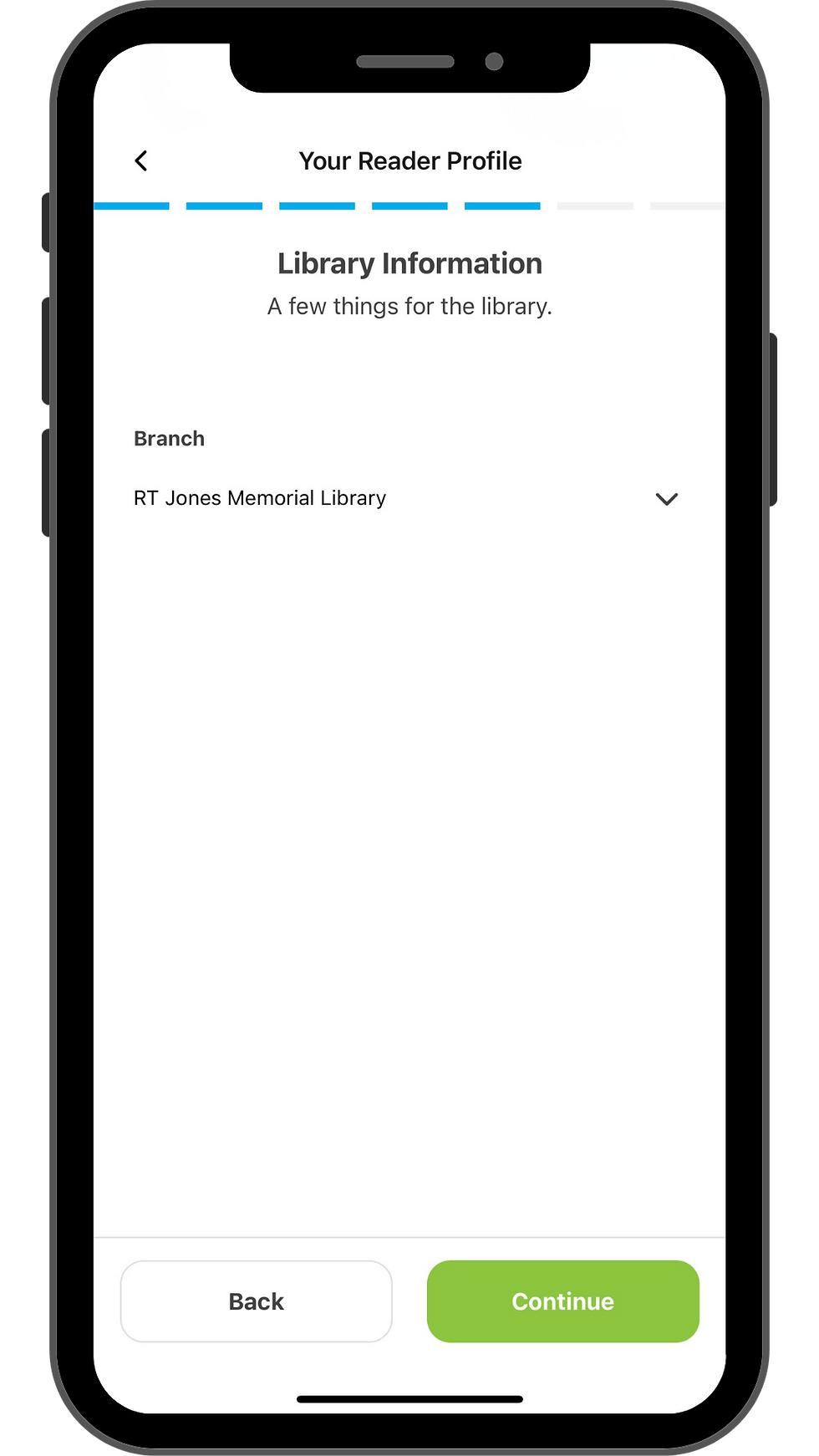 | For each reader profile, you can choose your home branch. Your home branch is your preferred SRLS location. Our locations include:
|
 | Next, you can choose whether or not you want this reader to receive weekly book recommendations. |
 | To complete your reader profile, register for one of our reading quests. You can scroll through this page to select the quest you'd like to begin with. Some quests have set start and end dates, while others can be completed at anytime. Tip: Register for our Beanstack Basics Quest to continue getting to know the platform. |
 | Once you've registered for a quest, your Reader Profile is complete! From here, you can add additional Reader Profiles or continue to the homepage by selecting "I'm done adding readers." |
What can I do in Beanstack?
 | Once your Reader Profile is complete, you're officially ready to explore all that Beanstack has to offer! On the homepage, you can see the following:
|
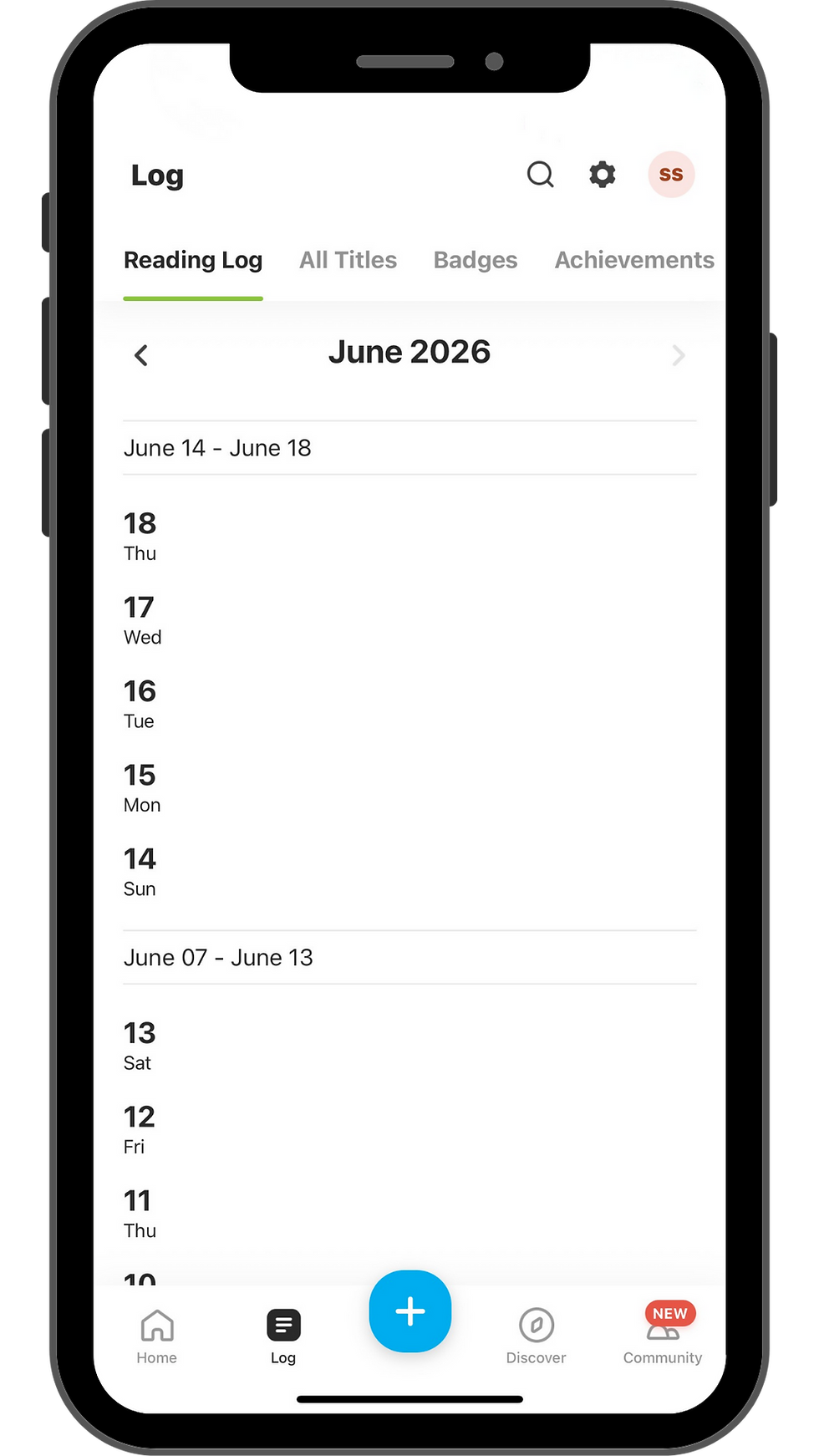 | On the Log tab, you can view your reading log dates, titles you've read, badges you've earned, and achievements. |
 | On the Discover tab, you can explore all of the reading quests currently available. Tip: You can register for multiple quests at one time! |
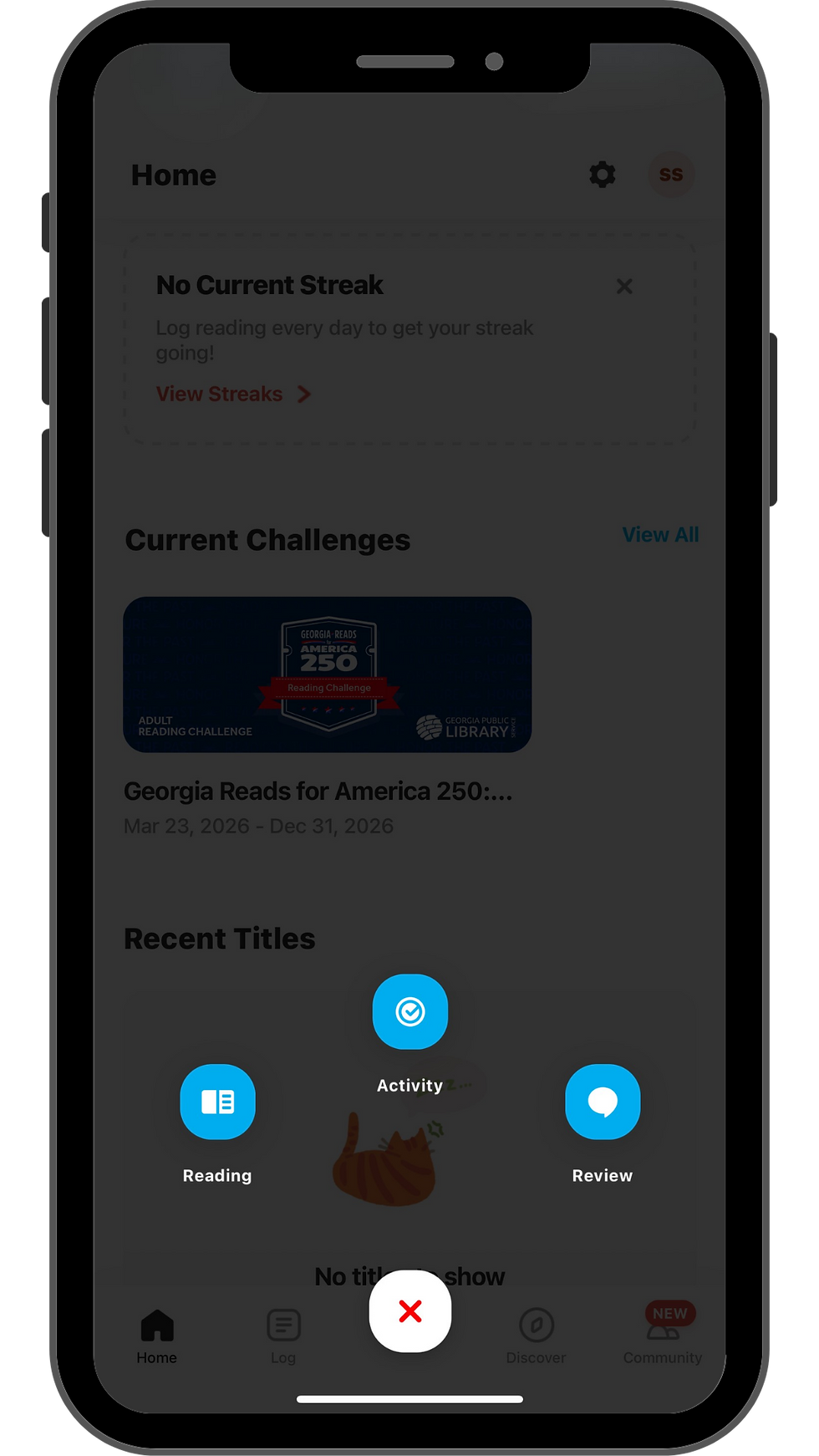 | By clicking the "plus" icon on the bottom of the screen, you can quickly log your reading, an activity, or add a review. |
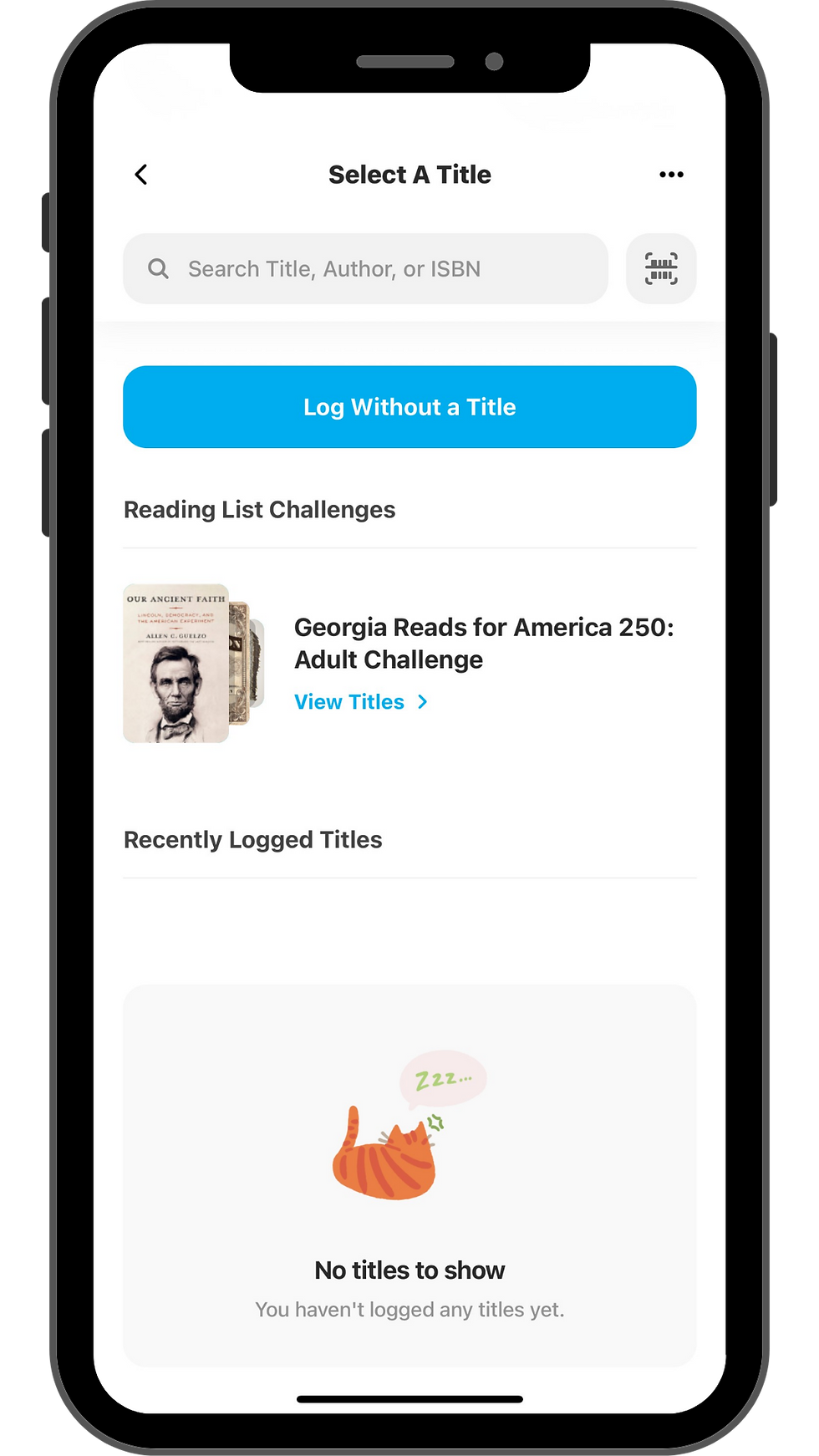 | When logging reading, you can search for a specific title to log or log without one. If a reading quest that you're registered for includes a reading list, you can quickly view those titles under "Reading List Quests." |
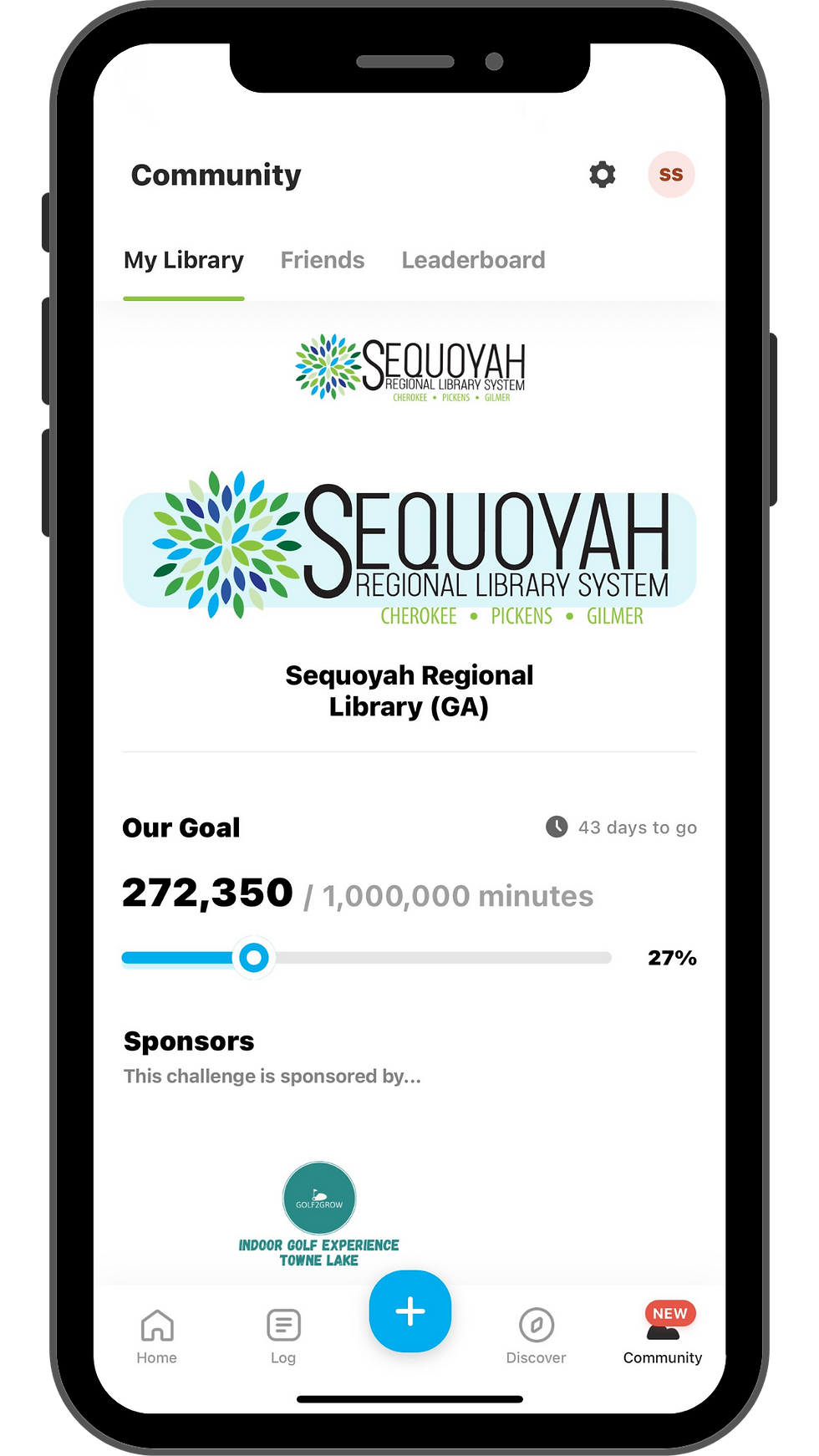 | Under the community tab, you can quickly see information from your library and your friends. |
 | In Beanstack, you can also add your friends! You and your friends can compete in your own leaderboard to see who reads the most. |
How can I earn badges and prizes?
Each quest in Beanstack includes the opportunity to complete different activities to earn digital badges. Some quests also provide the opportunity to win prizes. There are two different ways that community members can win prizes:
Registration Prizes: Some quests include prizes just for registering. These prizes are available while supplies last. If a quest features a registration prize, Beanstack will notify you that you've earned a prize once you've registered and that you can visit your home SRLS location to pick it up at a given time. Not every quest features a registration prize.
Prize Drawings: Some quests include prize drawings. For these quests, you will receive a digital ticket that you can allocate toward any listed prize for each digital badge you earn. You can spend your tickets on one prize or split them among different prizes. All tickets earned must be allocated toward a prize / different prizes before the quest ends.


Comments